

Documentation Index
Fetch the complete documentation index at: https://vector.plugcamp.com/llms.txt
Use this file to discover all available pages before exploring further.
Install the Plugin
Get Vectorized (AI Vectorizer) - Image Tracer installed and ready to use in just a few clicks.Open Figma Community
- Direct Link (Fastest)
- Manual Search
Click the button below to install directly from Figma Community:This will open Figma and take you directly to the plugin page.
Install Vectorized (AI Vectorizer)
Open in Figma Community →
Launch the Plugin
After installation, run the plugin using any of these methods:
Method 1: Resources Panel (Recommended)
Method 1: Resources Panel (Recommended)
- Press
Shift + Ior click Resources in the toolbar - Go to the Plugins tab
- Find Vectorized (AI Vectorizer) - Image Tracer in your saved plugins
- Click to run
Method 2: Quick Actions (Fastest)
Method 2: Quick Actions (Fastest)
- Press
Cmd + /(Mac) orCtrl + /(Windows) to open Quick Actions - Type “Vectorized (AI Vectorizer) - Image Tracer”
- Press
Enterwhen the plugin appears
Method 3: Right-Click Menu
Method 3: Right-Click Menu
Method 4: Menu Bar
Method 4: Menu Bar
Verify Installation
When the plugin launches successfully, you should see: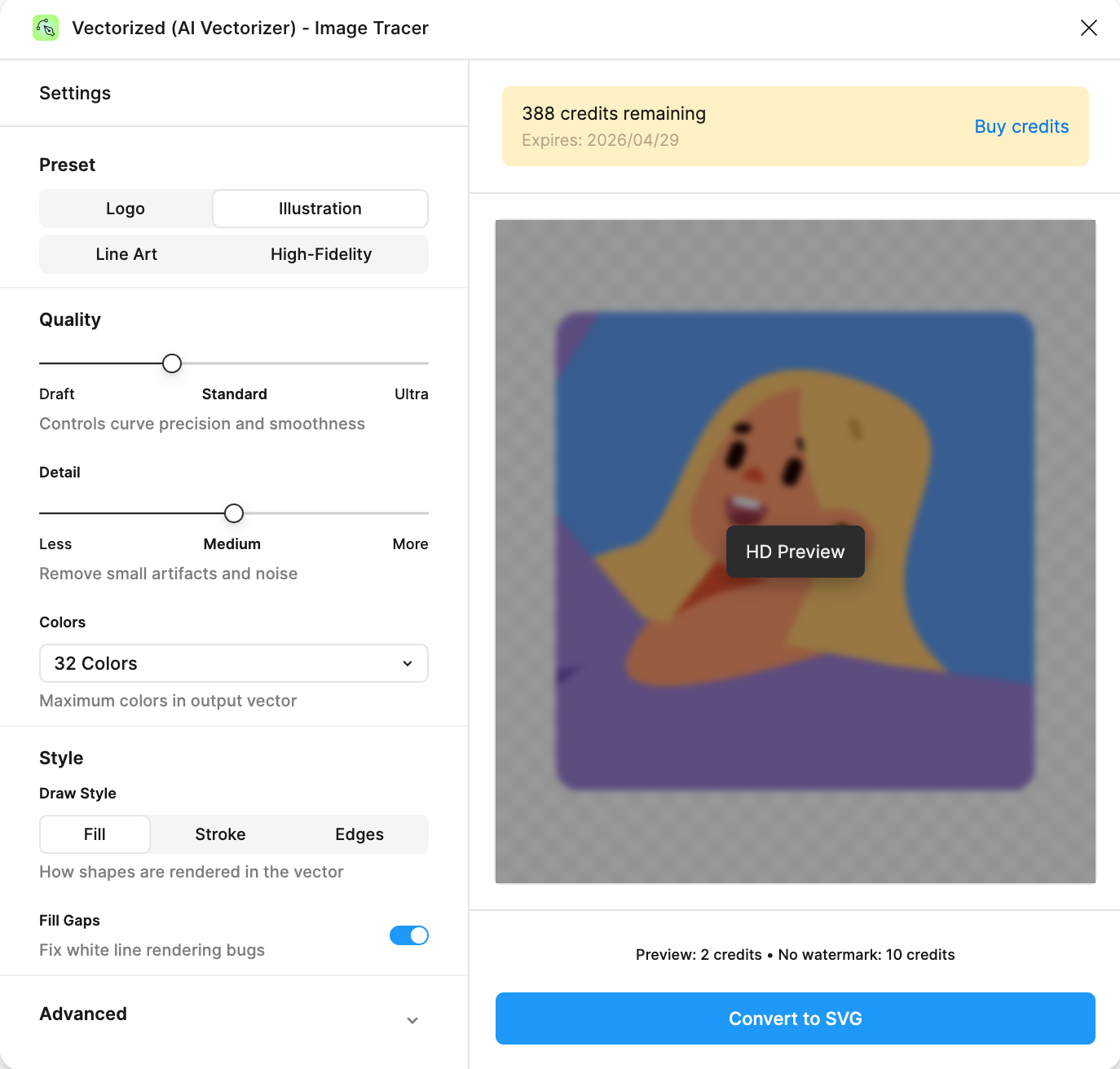
✓ Plugin panel opens on the right side of Figma
✓ Settings panel visible on the left with preset options
✓ Credit balance displayed at the top (shows 0 if you haven’t purchased yet)
✓ Canvas preview area in the center
✓ Convert to SVG button at the bottom
System Requirements
Figma Desktop
Recommended for best performance
- macOS: 10.15 (Catalina) or later
- Windows: Windows 10 or later
- Linux: Ubuntu 18.04+ or equivalent
Figma Browser
Works in modern web browsers
- Chrome/Edge: Version 90 or later
- Safari: Version 14 or later
- Firefox: Version 88 or later
Permissions Explained
The plugin requests the following permissions to function properly:| Permission | Why We Need It | What We Access |
|---|---|---|
| 📄 Current page access | To read selected images and place converted SVGs back into your design | Only the currently selected image node and its properties |
| 🌐 Network access | To send images to Vectorizer.ai API for processing and receive SVG results | Communication with our secure backend API only |
| 👤 User information | To manage your credit balance and track usage | Only your Figma user ID and name (no personal/payment data) |
Your privacy mattersWe take data privacy seriously:
- ✓ We never store your design files or images
- ✓ Images are immediately deleted after conversion
- ✓ We do not use your images for AI training
- ✓ No personal data is collected beyond Figma user ID
- ✓ All communication is encrypted (HTTPS)
Understanding Credit Balance
After installation, you’ll see your credit balance displayed at the top of the plugin:- Sufficient Credits (Green)
- Low Credits (Yellow)
- Insufficient Credits (Red)
10+ credits remainingYou have enough credits for full conversions. Each conversion costs:
- HD Preview: 2 credits (with watermark)
- Convert to SVG: 10 credits (no watermark)
Credit Expiration
Troubleshooting Installation
Plugin doesn't appear in my plugins list
Plugin doesn't appear in my plugins list
Possible causes:
- Plugin wasn’t installed successfully
- You’re looking in the wrong Figma account
- Browser/Desktop cache issue
- Try installing again using the direct link
- Check if you’re signed into the correct Figma account
- Clear browser cache (Browser version) or restart Figma (Desktop version)
- Check Figma Community to verify installation status
Plugin panel is blank or won't load
Plugin panel is blank or won't load
Possible causes:
- No internet connection
- Firewall/VPN blocking the plugin
- Outdated Figma version
- Check internet connection - Plugin requires online access
- Disable VPN/proxy temporarily to test
- Update Figma to the latest version
- Restart Figma completely (quit and reopen)
- Try in a different browser (if using Browser version)
'Insufficient permissions' error
'Insufficient permissions' error
What this means:
The plugin needs certain permissions to function, but they weren’t granted during installation.Solution:
- Uninstall the plugin:
- Go to Resources (
Shift + I) → Plugins - Right-click on Vectorized (AI Vectorizer) - Image Tracer
- Select “Remove plugin”
- Go to Resources (
- Reinstall using the direct link
- Accept all permissions when prompted
Can't find the plugin after installation
Can't find the plugin after installation
Try these locations:
- Resources Panel (
Shift + I) → Plugins tab - Quick Actions (
Cmd/Ctrl + /) → Type “Vec” - Menu Bar → Plugins → Vectorized (AI Vectorizer) - Image Tracer
- Right-click any image → Plugins → Vectorized (AI Vectorizer) - Image Tracer
Plugin works on Desktop but not Browser (or vice versa)
Plugin works on Desktop but not Browser (or vice versa)
This is normal behaviorPlugins installed on Desktop aren’t automatically available in Browser, and vice versa. You need to:
- Install separately in each environment
- Use the same Figma account
- Credits are shared across both versions
Still Having Issues?
Visit our comprehensive troubleshooting guide or contact support →
Next Steps
Congratulations! Vectorized (AI Vectorizer) - Image Tracer is now installed and ready to use.Quick Start Guide
Complete your first conversion in 5 minutes
Buy Credits
Purchase credits to start vectorizing
Explore Presets
Learn about Logo, Illustration, Line Art, and High-Fidelity modes